
Reimbursement Submission Workflow
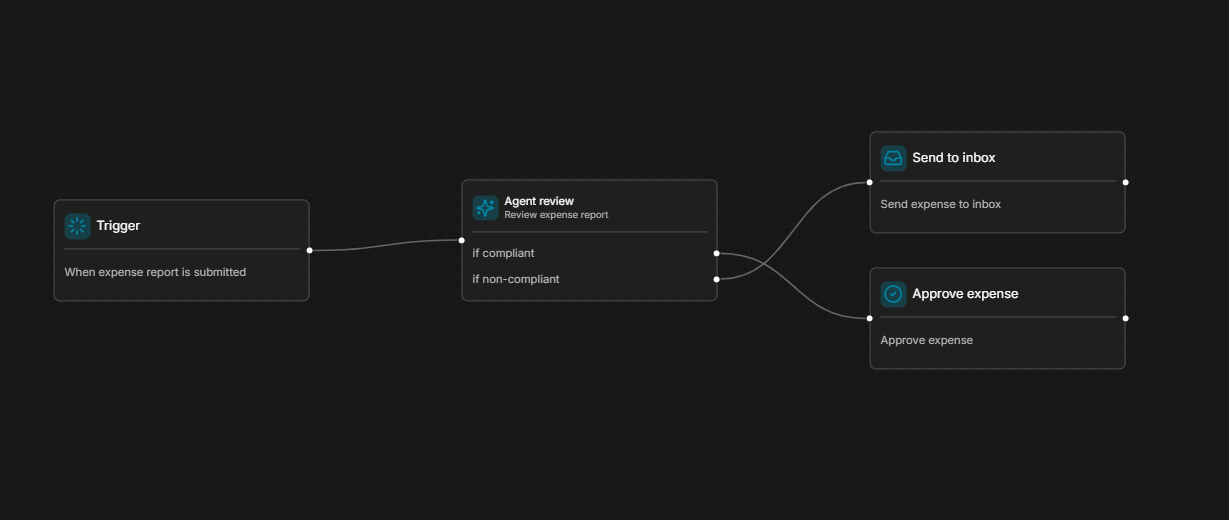
This workflow controls what happens after an employee submits a reimbursement and determines whether the reimbursement is auto-approved or routed for manual review.
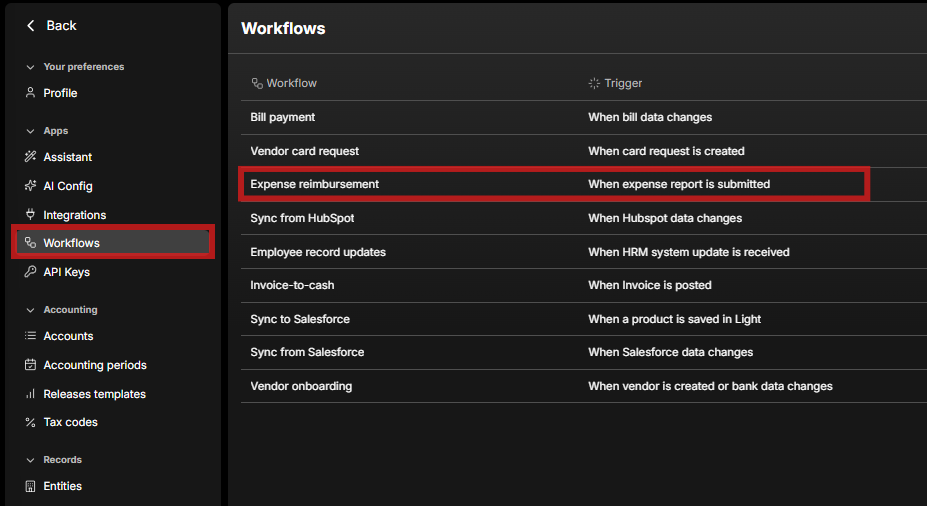
What it does
-
Runs when an employee submits a reimbursement (out-of-pocket expense).
-
Passes through an Agent Review node that checks your Expense📄 Policies in Light
and marks the submission Compliant or Non-compliant. -
Based on that result, the item either:
-
Auto-approves (if configured to do so), or
-
Goes to Reimursements > Inbox for manual approval = ⚠ beginning of Blll Payment Workflow (see below)
-
Conditions you can use
-
You can select specific user groups to be auto-approved
-
If you want to include approvers into reimburesment workflow this needs to be done separately under bill approval workflow (type = reimbursement) - see below for more detail
Configurations for Auto-Approves
-
You need to upload 📄 Policies in Light
-
Reimbursements must have a Category before submission (outside the workflow - 📄 Reimbursements Setup and Submission)
-
System will auto-select the default bank account per entity based on your settings (Settings > Banks > Defaults) - without a “pay-from” account, auto-payment won’t execute.
-
To further adjust the agent behavior you can go under Settings > Assistant > Custom instructions for reimbursements parsing and add additional prompts e.g. if it is a phone bill, the max reimbursement amount is 700 SEK
-
You can auto-allocate custom properties based on who submits the reimbursement, you can do this under📄 Custom Properties Setup (choose user groups in the last step)
How it links to Bill Payment Workflow?
-
When a reimbursement is sent to Inbox, it is treated like a bill for approval (uses the Bill Approval workflow below).
-
If a reimbursement is auto-approved, it skips the bill approval workflow.
Keep policies current: Agent Review uses your Expense Policies—make sure they reflect your thresholds and rules.