
Overview
This article explains how Bill approvals work in Light, moving through each stage of the **Accounts Payable (AP)**workflow:
Bill Received → In Approval → Scheduled for Payment
🧾 Note: The Vendor Workflow and Expense Workflow are covered in separate articles.
What Triggers This Workflow
A Bill enters Light through any of the following channels:
- Email sent to your Bills Inbox address
- Manually uploaded in bulk
- API import
Once received, it appears under Bills → Inbox.
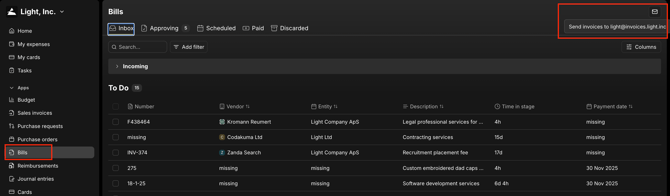
Review & Coding Stage
The Finance team reviews each Bill in the Inbox.
Light automatically extracts key information using OCR (Optical Character Recognition), including:
- Supplier
- Invoice number
- Invoice date
- Due date
- Net amount / VAT
- Line items (when possible)
Finance then confirms and completes the following:
- GL accounts
- Tax codes
- Custom properties (e.g., Department, Project)
- Entity selection (for multi-entity setups)
How Approvals Are Assigned
Light applies Bill approval rules defined by Finance Admins under:
Settings → Workflows → Bill
These rules determine approvers based on configurable parameters such as:
| Parameter Example Rule | |
|---|---|
| Amount | Under $5K → Manager only; Over $10K → CFO required |
| Vendor | AWS always requires CTO + CFO approval |
| Entity | UK entity → escalate to UK Finance Lead |
| Property | R&D spend → route to Head of Engineering |
Once rules are evaluated, Light automatically assigns the approver chain.
Finance can manually override this if necessary.
When ready, click Send for Approval.
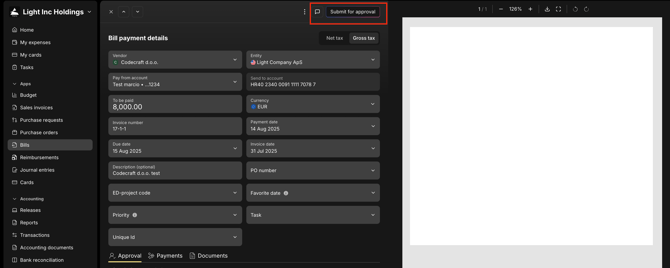
Approvals Stage
After submission, the Bill moves to the Approving stage.
Approvers are notified via:
- In-app tasks (Tasks tab)
- Slack notifications (if Slack integration is enabled)
Approvers can take the following actions:
- ✅ Approve — advances to the next approver or to “Scheduled” once final
- ❌ Reject — sends the Bill back to Inbox with a comment
- 💬 Comment — keeps the Bill in Approving status
When the final approver approves, the Bill’s status updates to Scheduled.
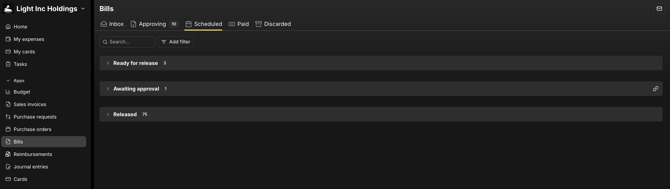
Scheduled (Payment Stage)
Scheduled means the Bill is:
- Fully approved
- Posted to the General Ledger (GL)
- Ready for payment
At this point:
- Light already knows the due date
- Payments can run automatically (if bank payments are configured)
Finance can either:
-
Run the payment manually, or
-
Allow auto-pay to execute on the due date (if enabled)
Paid
Once payment is executed — or manually marked as paid — the Bill moves to Paid.
Paid Bills appear in:
- Bills → Paid
- Transactions Report (Ledger)
Duplicate Protection
Light automatically detects and flags potential duplicate Bills based on:
Vendor + Invoice Number + Amount

Important Notes
- Bill workflow is separate from Expense workflow
- The Bill approval chain is the primary control point
- The Scheduled → Paid stage is where AP and Bank Payments integrate