
Before uploading historic transactions or opening balances, ensure the following are completed:
-
All required custom properties have been created in Light
Recommendation:
We strongly recommend migrating your data at the end of a tax period.
If you need to migrate mid-tax period, please refer to [insert link].
We recommend that you migrate your data at the end of a tax period. If you need to migrate during a tax period please check out [insert link]
Introduction
Historic transactions and opening balances are uploaded into Light as journal entries.
This guide covers:
- The journal upload template
- Mapping your data to Light’s format
- Uploading your data
- Handling bank accounts in foreign currencies
- Handling open AP/AR balances
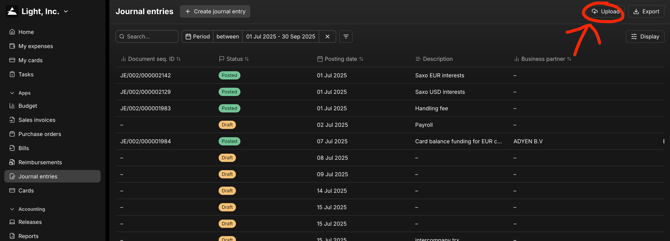
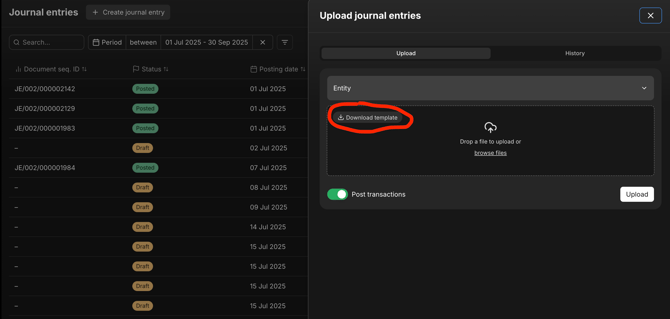
Part 1: Download the Journal Template
Download the standard journal upload template from Light.
All historic transactions and opening balances must follow this format.
Part 2: Mapping Your Data to Light’s Format
Required Fields
The following fields must be included for every journal line:
-
Entry ID
A unique journal identifier.
Must be unique across all entities (e.g. no overlap between UK and US entities). -
Date
Transaction date in YYYY-MM-DD format. -
Currency
Currency of the transaction. -
Debit
Debit amount (always a positive number). -
Credit
Credit amount (always a positive number).
Sometimes required
-
Local / Group rate - required if you have multiple entities with different local currencies and you want to keep the historical FX used in your old system (otherwise your old FX will be replaced by Light FX and your balances might differ from your old system)
-
Tax amount / Tax code - only required for historical transactions
-
Business partner name / Business partner ID - optional but if you want to allocate your historical transactions to a specific vendor / customer = required
Optional:
-
Entry description - needs to be same for all the lines of one Entry ID
-
Line description - can be always different
Custom properties - if you have historically had any groupings such as department (marketing, sales etc.) you can add a new column in the temple with the name of your legacy custom property (e.g. “Department”), Note: if you want to add these the custom property first needs to be created in Light - make sure that the “internal name" (see Light custom properties) is used as header in your csv template
Formatting Rules
-
Journals must be sorted by Entry ID
-
Each Entry ID must fully balance (total debits = total credits)
Part 3: Uploading your data
Upload separate files per entity
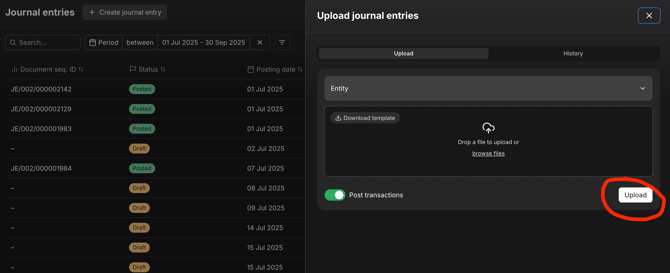
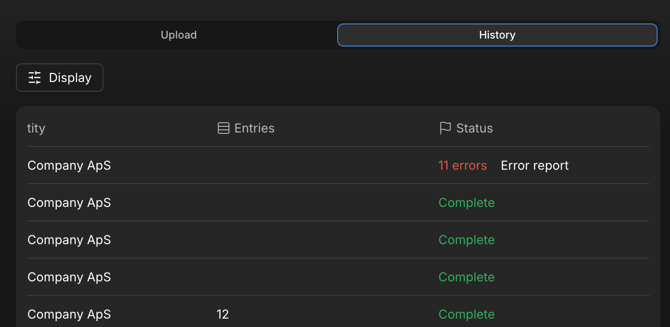
Once uploaded:
- The upload appears in the History tab
- Any validation errors will be flagged
Handling Errors
-
Duplicate Entry IDs are ignored by the upload
-
If errors occur:
-
Fix the original file
-
Re-upload the corrected version
-
This is the fastest way to resolve issues.
A. Bank Accounts in Foreign Currencies
If your company has bank accounts in a different currency than the entity (eg. DK entity has an EUR bank account):
-
In the historic or opening balance import, replace each foreign currency bank account with a “Suspense” account
-
Then, either monthly, or just as at the go live date, post a journal to move the balance to the primary bank account, with a fixed local currency
Example:
-
Ledger currency: DKK
-
Bank account: EUR, with a balance of 100 EUR (equivalent to 750 DKK)
Step 1: In the main journal (DKK):
DEBIT 750 DKK to Suspense Account
Step 2: Separate journal in EUR (set FX rate to 7.5):
DEBIT 100 EUR to Bank Account
CREDIT 100 EUR to Suspense Account
B. Open (Unpaid) AP/AR at Opening balance date
If there are unpaid Accounts Payable or Receivable:
-
In the historic or opening balance import, replace AP/AR accounts with the Suspense account (e.g. 999999 Suspense account).
-
For AP, you should send all open bills to the Light invoices email address.
-
If the transactions are in a foreign currency, please highlight this and a Light engineer can fix the FX rate to your previous system's rate
-
-
For AR, complete this template, and share it with your Light contact to upload
-
Select the Suspense account on all bill / sales invoice lines and post the bill / invoice
Expected outcome:
-
The Suspense account will balance to zero once all bills are posted.
The Accounts Payable/Receivable account will reflect accurate balances.