
Prerequisites
Before you start, make sure the following are completed:
-
📄 Setting Up Light Cards is completed
-
📄 Prepare and upload a Chart of Accounts (CoA) is completed
Step 1 – Create Card Accounts in the CoA
-
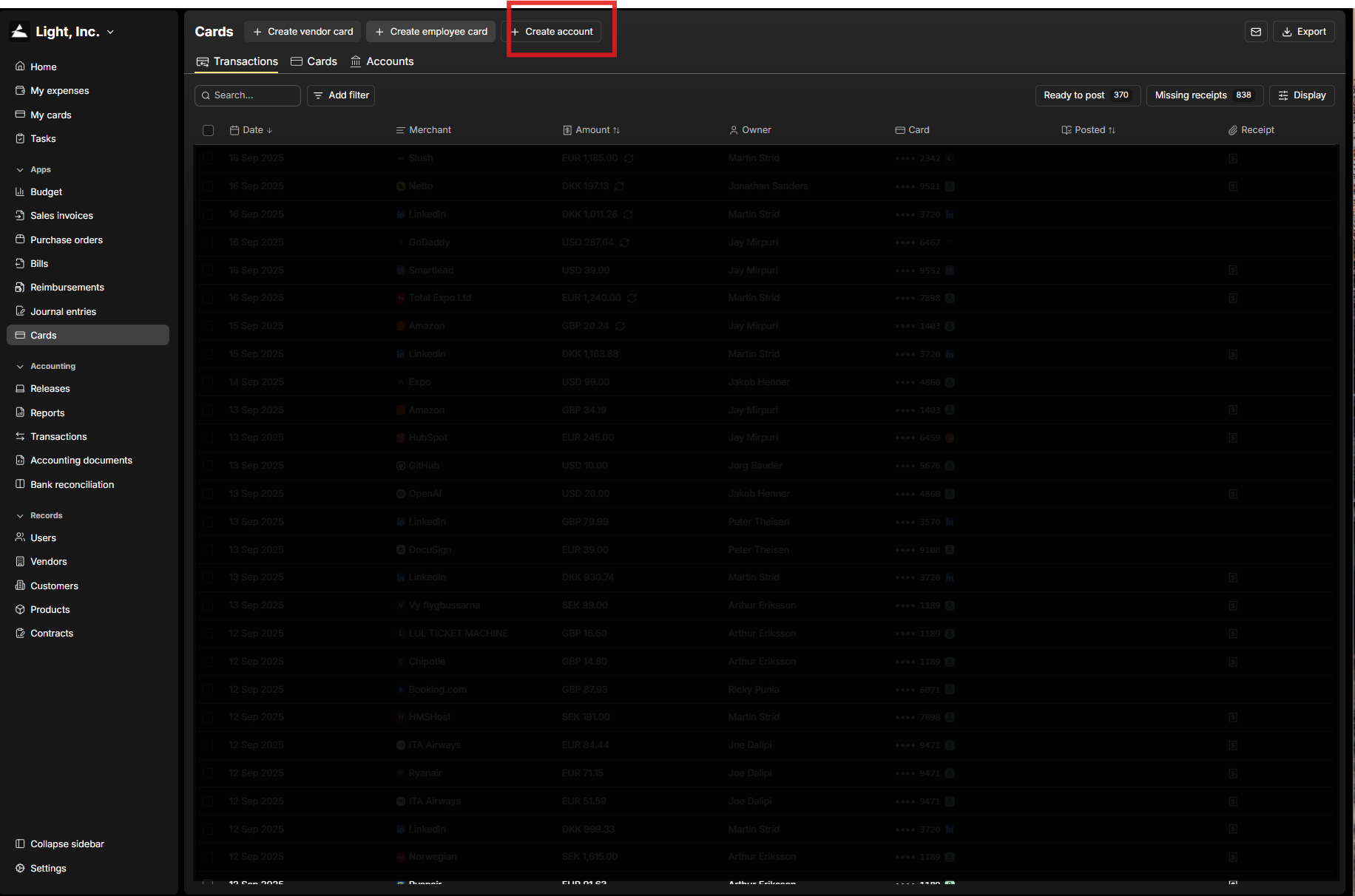
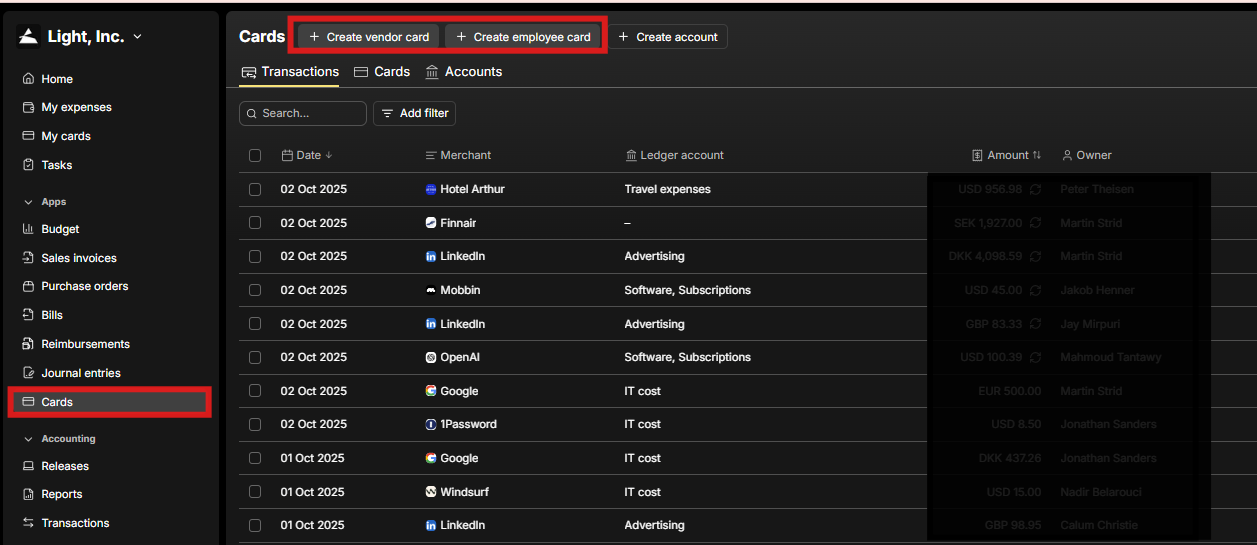
Navigate to Cards in Light.
-
Click Create Account.
-
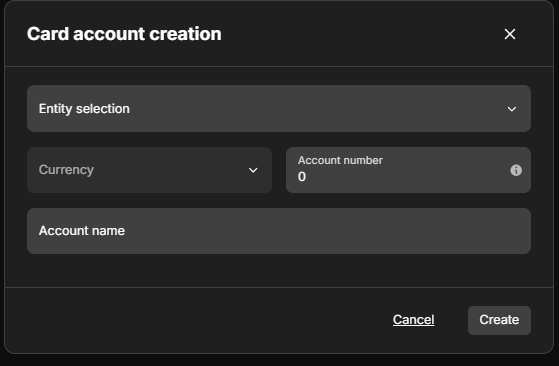
Enter the following information:
-
Entity under which the cards belong
-
Currency of the account
-
Ledger account number
-
Ledger account name
-
⚠️Once saved, a new ledger account will automatically be created in your CoA. Choose the number carefully based on your CoA structure.
Step 2 – Link Entity Settings
-
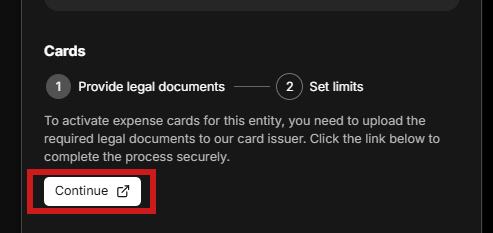
Go to Settings → Entities.
-
Select the entity connected to your cards.
-
Click Continue.
-
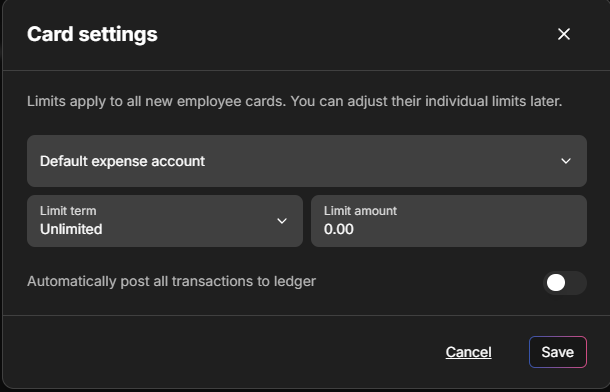
Choose:
-
The correct ledger account number
-
Default limits for employee cards
-
Limit period (e.g., daily, weekly, monthly)
Step 3 – Create Cards
You now have two options:
-
Employee Cards
-
Vendor Cards
Final Notes
💸 Funding Required
-
Make sure to fund your Adyen account before using cards.
⚠️ First Funding Delay
-
The first charge may take a few days as Adyen matches the funds.
-
Subsequent transactions are usually processed within a few hours.
-
If funds are not visible within 2 days after the initial charge, please contact Light Support.
Frequently Asked Questions
Q: Do I need to create a separate ledger account for each card?
-
No. You only need one card account per entity/currency combination.
Q: Can I change default limits later?
-
Yes, limits can be adjusted per card after creation.
Q: How fast are card charges reflected?
-
After the first charge, usually within a few hours.