Prerequisites
⚠️ Before you begin:
To set up bank accounts in Light, your Chart of Accounts (CoA) must already be uploaded. How to upload a COA.
How to Set Up Bank Accounts
Follow these steps to add your bank accounts in Light.
-
Navigate to Bank Accounts Settings
-
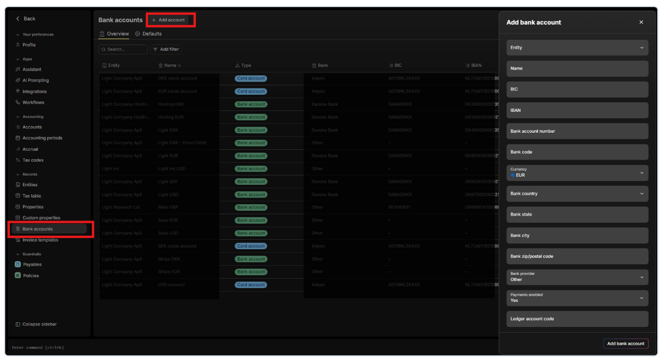
Go to Settings -> Select Bank Accounts -> Click Add Account
-
-
Add Your Bank Account Details.
-
For each bank account, complete the following fields as applicable:
-
Entity -> Select the entity the bank account belongs to.
-
Account Coordinates -> Enter the bank account identification details.
Important: Not all fields are mandatory. Depending on geographic location, you can use either: IBAN + BIC, or Bank account number + bank code -
Payment Enabled -> Set to Yes if you plan to use this account for making payments from Light.
-
Ledger Account Code -> Enter the account number under which this bank account should be recorded in your Chart of Accounts.
Note: If the ledger account does not already exist, a new account will be automatically created in your CoA once you save.
-
-
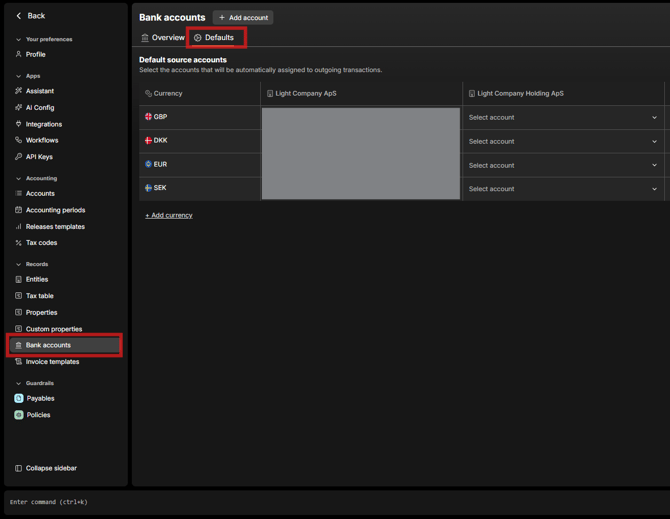
Default Bank Accounts
Default bank accounts allow you to specify which bank account should be used automatically for each entity.
Why Use Default Bank Accounts?
Example use case:
When an employee submits a reimbursement:
-
The expense report defaults to the employee’s entity of employment
-
The payment is automatically made from that entity’s default bank account
The same logic applies when processing supplier bills.
✨ Good to know:
You can define default bank accounts per entity and per currency, giving you full control over multi-entity and multi-currency setups.