
The Accruals section in Light allows you to automate diverse release schedules.
💡Example Use Cases
-
Deferred Revenue – spread recognition of upfront customer payments across contract duration.
-
Prepaid Expenses – allocate costs of annual software licenses over 12 months.
-
Depreciation – automate monthly depreciation of fixed assets.
Step 1 – Navigate to Release
Go to Settings → Accruals.
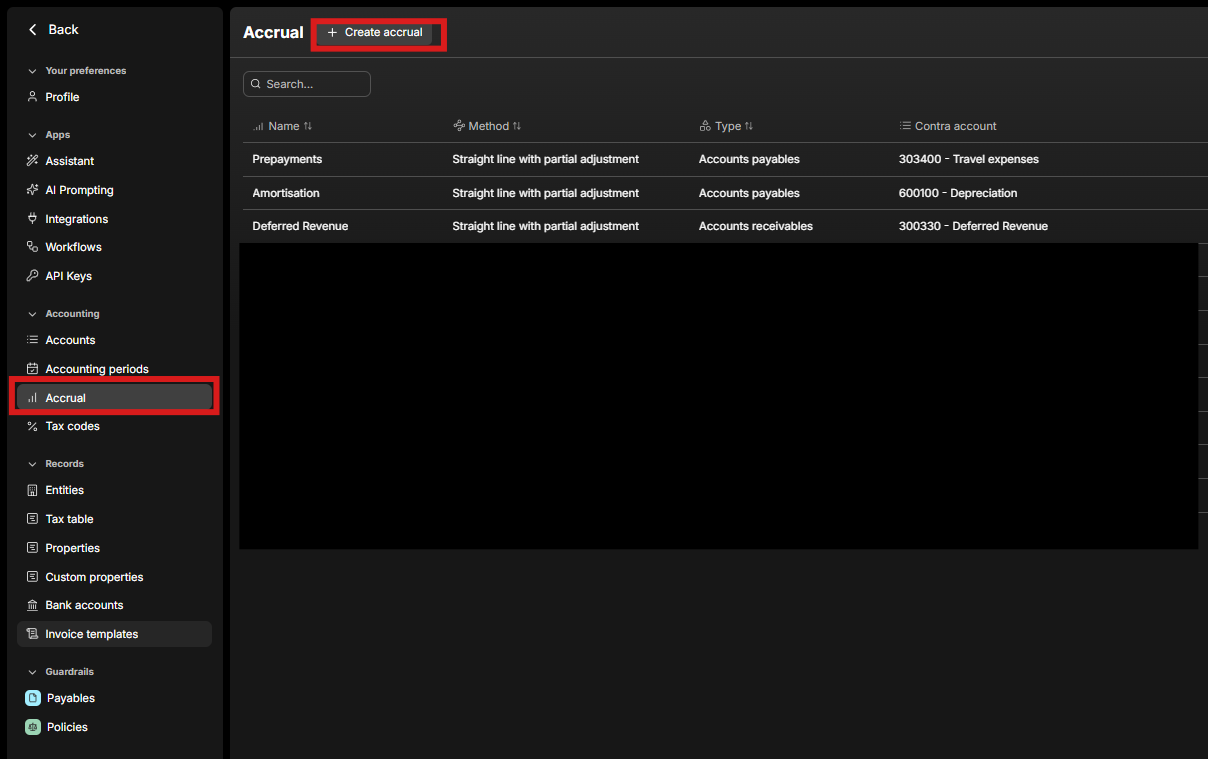
Step 2 – Create a New Release Template
-
Click Create Release.
-
Fill in the required fields:
-
Name – e.g. Deferred Revenue
-
Method – Straight-line or Increasing-base
-
Type – e.g. Accounts receivable or Accounts payable
-
Contra Account – e.g. Deferred revenue
-
-
(Optional) Configure additional fields:
-
Initial amount %
-
Residual amount %
-
Default duration (months)
-
Accumulate past amounts (checkbox)
-

Step 3 – Apply Release Templates
-
After saving, your release templates will be available as a column in line items for:
-
Sales invoices (type: Accounts receivable)
-
Bills (type: Accounts payable)
-
Other documents depending on setup
-
-
To apply:
-
Click on the Release column in a line item.
-
Select the accrual template.
-
Choose the period over which you want the expense or revenue accrued.
-
