
Overview
This article provides a step-by-step guide to Light’s reporting tools so finance teams can:
- Build pivot summaries from the ledger
- Design table reports such as P&L, Balance Sheet, or custom layouts
- Filter by entity, period, custom properties, vendors/customers
- Save and export reports for month-end close
Where to Find Reporting
-
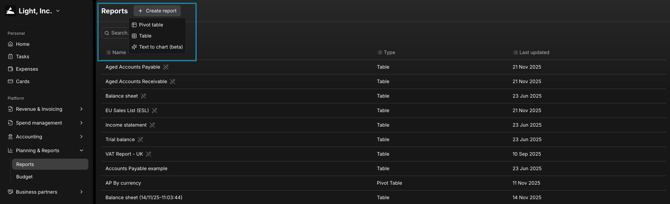
Planning and Reports → Reports
-
Create report → Table → Build formatted, rule-based financial statements
A) Pivot Tables — Fast Summaries of the Ledger
Use Pivot Tables when you need quick summaries — for example:
Cash by Business Parter by Month, Revenue by Customer by Month or Spend by Department
Create a Pivot
Go to Reports → Create Report → Pivot Tables
-
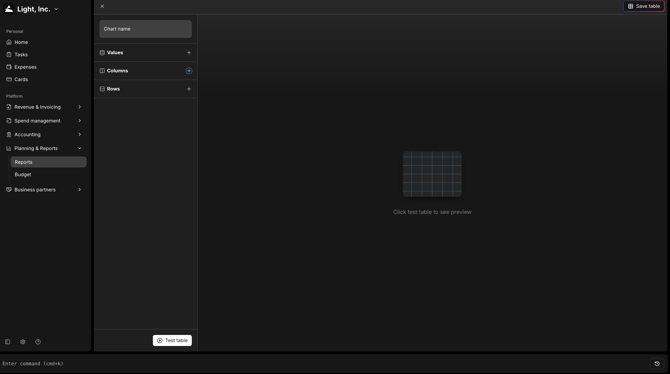
Configure your pivot:
- Values: Amount (sum by default)
- Columns: Month (or Posting Date → Month)
- Rows: Account, then Department (or another custom property)
- Filters (optional):
- Entity (single or consolidated)
- Account type (e.g., P&L only)
- Vendor or Customer
- Custom properties (e.g., Project, Region, Cost Center)
-
Click Test Table
Tips
- Add Currency as a filter if you transact in multiple currencies.
- Reorder Rows to change grouping (e.g., drag Department above Account).
- Click any cell to drill into underlying transactions.
Save & Share
-
Click Save and give your pivot a clear name — e.g., “P&L by Dept — Monthly”.
-
Export your report via Export → CSV/XLSX for your close pack.
B) Tables — Formatted Financial Reports (P&L, Balance Sheet, Custom)
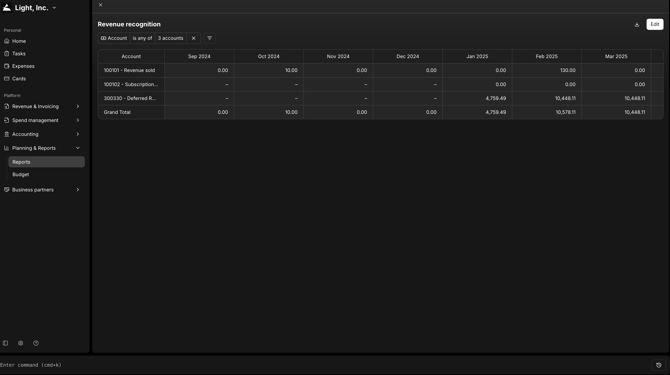
Use Tables when you need a structured, formatted report with sections, subtotals, and formulas — such as a Management P&L, Entity P&L, or Balance Sheet.
Edit template
- Go to Reports → Tables
- On the Reports page, hover over the Income Statement or Balance Sheet
- Click ⋯ → Duplicate to create your own version
- Open your copy and click Edit
-1.png?width=670&height=279&name=image%20(1)-1.png)
How Table Rows Work (Selectors & Formulas)
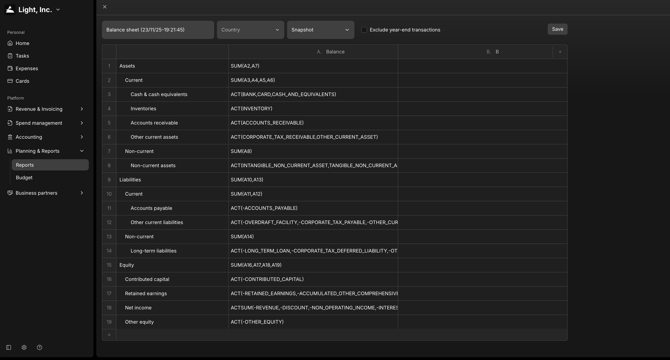
Each row is driven by a selector (what to include) and optional formulas.
Common Selectors:
ACT("revenue")→ Select by account type (Revenue, COGS, Expenses, etc.)ACP("4")→ Select by account code prefix (e.g., all 4-xxx)ACP("400100","400200")→ Select specific accounts
Formulas and Subtotals:
- Sum Selectors: ACTSUM, ACPSUM
- Combine rows:
= SUM(A1, A2)
Example Section:
| LabelFormula | |
|---|---|
| Revenue | ACT(REVENUE) |
| Cost of Sales | ACT(COST_OF_SALES) |
| Gross Profit | SUM(A1, -A2) |
| Operating Expenses | ACT(OTHER_OPERATING_EXPENSE) |
| EBITDA | SUM(A3, -A4) |
Layout & Display Options
- Indent rows to show hierarchy and subtotals
- Toggle sign display for income or expense lines
- Filters: Entity, Department, Project, Vendor, Customer, Currency
Run, Save & Export
- Click Save to store the layout for future reporting cycles
- Use Export → PDF / CSV / XLSX to share or archive
C) Transactions — The Audit Trail
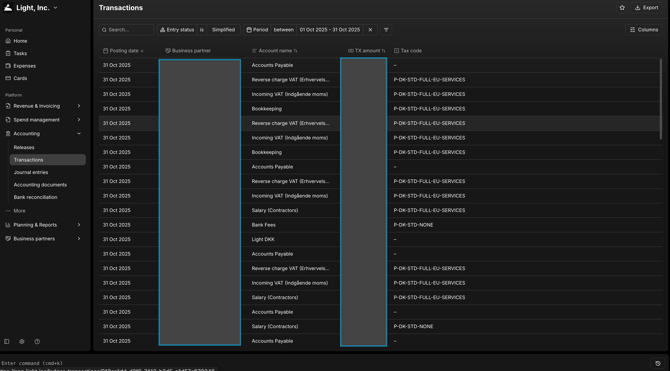
Use Transactions when you need detailed, line-level data for reconciliation or audit.
- Go to Accounting → Transactions
- Filter by Date, Entity, Account, Vendor/Customer, Custom Property, or Document Type (Bills, Journals, Cards, etc.)
- Export results for reconciliation
Common Report Patterns (Examples)
P&L by Department (Pivot)
- Values: Amount
- Rows: Department
- Columns: Month
- Filter: Account Type = P&L, Entity = Consolidated
- Save As: “P&L by Dept — Monthly”
Vendor Spend (Pivot)
- Rows: Vendor
- Columns: Quarter
- Filter: Account Type = P&L; Account contains “610” (or OPEX range)
- Use to identify spend concentration or quarter-over-quarter changes.
Management P&L (Table)
- Duplicate Income Statement, rename to “P&L — Management”
- Add subtotals (e.g., Gross Margin, EBITDA)
- Columns: This Month, Prior Month, Variance
- Filters: Consolidated; exclude one-offs (via custom property)
Balance Sheet by Entity (Table)
- Duplicate Balance Sheet
- Columns: Entity (or run per entity via filter)
- Include Book Value to tie out with the Releases view (if using prepayments/fixed assets)
Filters & Dimensions You Can Use
- Entity: Single or Consolidated
- Date: Posting Date, Month, Quarter, Year
- Account / Account Type
- Business Partner: Vendor / Customer
- Custom Properties: Department, Project, Region, Cost Center, Class, Product Line
- Currency: Reporting currency context
Saving Conventions (Recommended)
To keep reports consistent and searchable:
-
Prefix with report type:
PIVOT —orTABLE — -
Include time grain:
Monthly / Quarterly / YTD -
Example:
TABLE — P&L (Mgmt) — Monthly + PM Var