
Using and Managing Your Light Cards
Light issues virtual cards that employees can use for business purchases. These secure Mastercard Commercial cards work with Apple Pay and Google Wallet and are fully managed through the Light platform. This guide explains how to set up your card, add it to your mobile wallet, view spending, and manage receipts.
Accessing Your Cards
Where to Find Cards
- Log in to the Light web app.
- Navigate to Home → Cards.
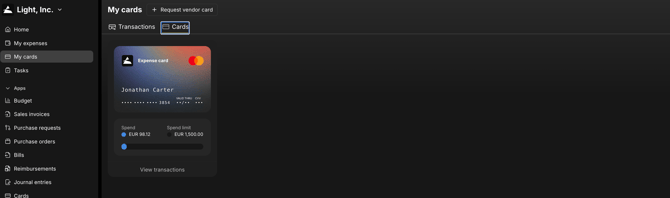
This page is your central workspace for all Light cards.
First-Time Setup
If this is your first card:
-
Click Create Expense Card (or Request Card, depending on your company’s settings).
-
Enter your phone number when prompted.
-
Confirm your details to finalize creation.
Once confirmed and approved (if required), your virtual Light card becomes active immediately.
Adding Your Light Card to a Mobile Wallet
Your Light cards can be added to both Apple Pay and Google Wallet for tap-to-pay convenience.
Go to Home → Cards and select your card.
Click Add to Wallet.
Follow the displayed instructions — scan a QR code to complete setup.
After adding it to your wallet, you can use your virtual Light card for in-store and online payments where mobile wallets are accepted.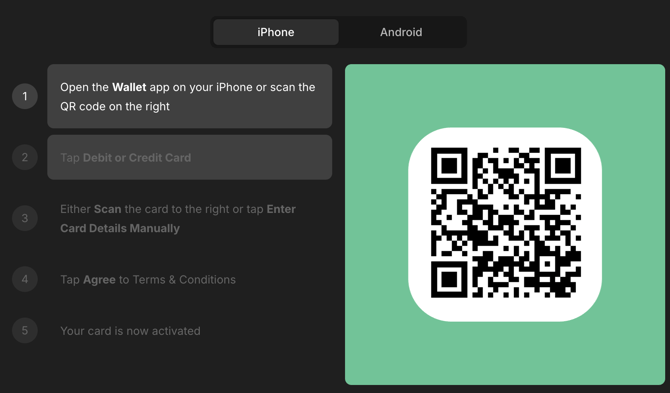
Viewing Card Details and Limits
Inside your card details view, you’ll see:
-
Time-bound spend limit
-
Amount spent so far this month (resets automatically at month-end)
-
Card information (including masked card number)
-
Entity text code — sometimes required during online checkout
-
Freeze / unfreeze controls for instant security management
This overview helps ensure your Light card is used within approved policy and spend boundaries.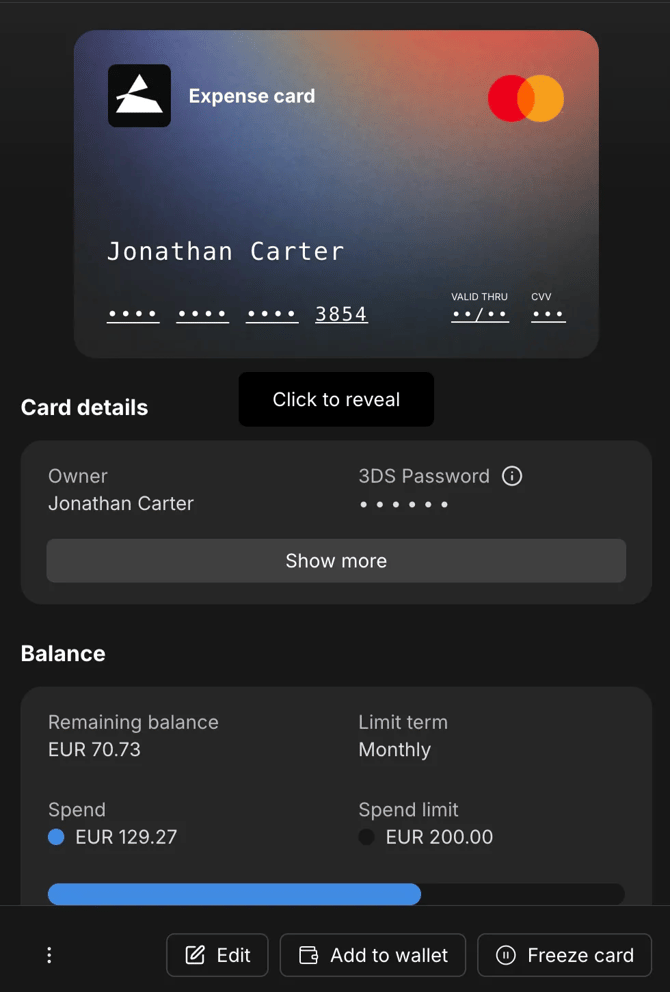
Tracking Transactions
All transactions appear in Cards → Transactions.
Each entry includes:
-
Merchant details
-
Amount and status
-
Ability to upload or attach missing receipts
This provides a clear, auditable history of card activity.
What Cardholders Can Do
Employees with the Cardholder role can:
-
View and manage their cards
-
Request new cards (if permitted)
-
Add Employee cards to Apple Pay or Google Wallet
-
Review their spend limits and balances
-
Freeze or unfreeze cards immediately
-
Upload and attach receipts across multiple channels