
Follow the steps below to export your accounting data from E-conomic and prepare it for migration to Light.
-
Log in to E-conomic
Access your E-conomic account. -
Open the Reports Section
From the main menu, click on Reports.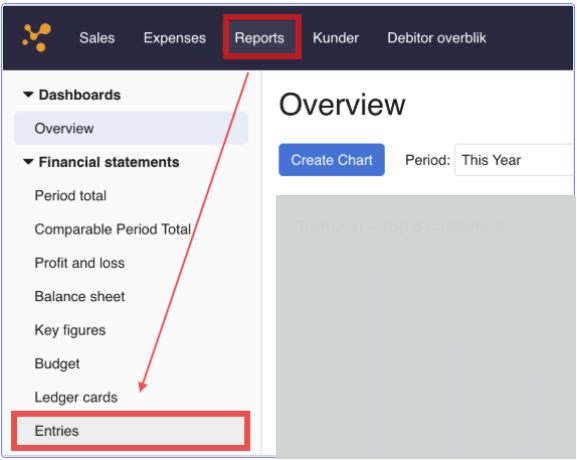
-
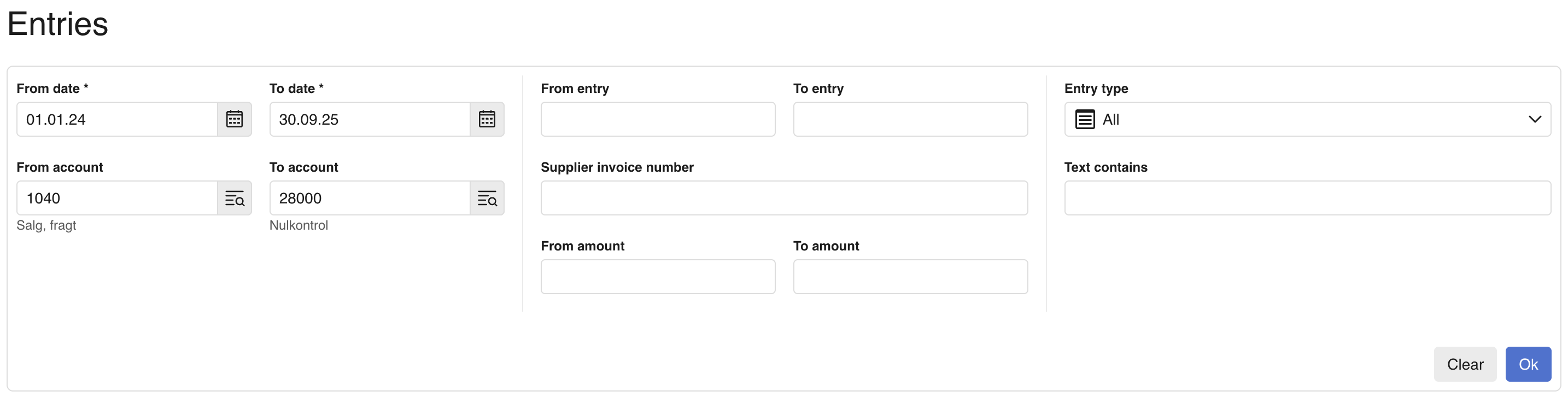
Select the Data Range
-
Choose:
-
The date range covering the historical period you wish to export.
-
All account codes (to ensure a complete export).
-
-
- Then click OK at the bottom right.
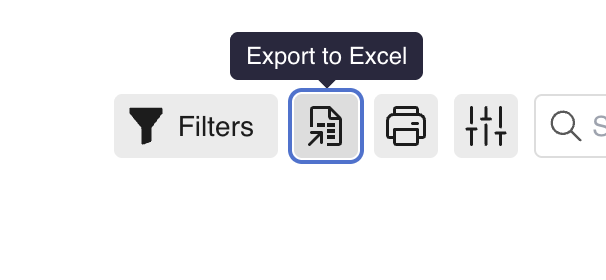
- Export to Excel
- Once the report is generated:Click Export → Excel.
- Save the file to your local computer
- Share the Files with Light Send us:
- The Excel export from E-conomic.
- Your Chart of Accounts (CoA) mapping from E-conomic to Light.
- Please include all historical CoA codes that may have changed over time.
- This ensures accurate mapping and smooth upload of historical data into Light.