
Overview
In Light, Entities represent the separate legal companies your organization operates.
Each Entity exists within your Light workspace and is linked its own financial settings, accounts, and reporting data.
How to Add a New Entity
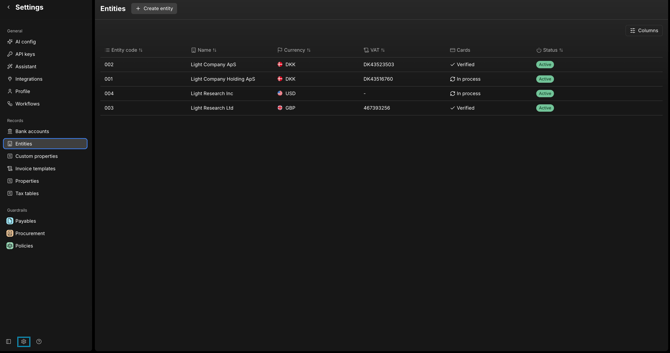
Step 1 — Navigate to Entities
Go to:
Settings → Entities
Step 2 — Create a New Entity
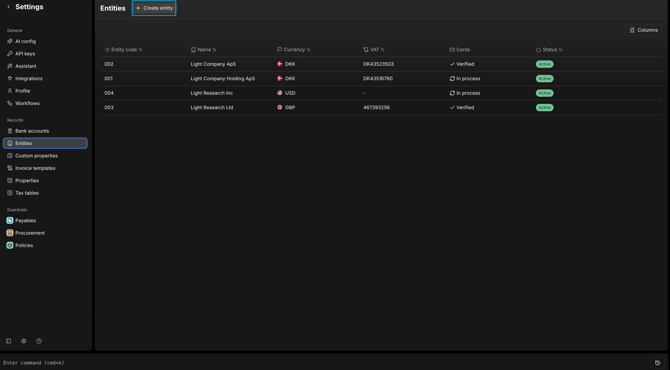
Click New Entity.
Step 3 — Complete the Entity Details
Fill in the required fields in the New Entity form:
-
Entity Name – The official name of the company.
-
Base Currency – The local reporting currency used for this entity.
-
Country / Jurisdiction – The legal location or registration country.
-
Default Accounts Setup – Choose or configure default accounts for the entity.
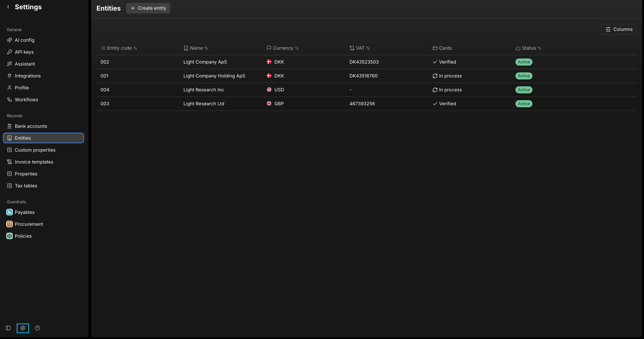
When complete, click Create.
Where the Entity Appears in Light
The new Entity will be available across multiple features in your workspace:
- Revenue – Assign contracts to the correct entity.
- Bills – Each bill is linked to a single entity.
- Chart of Account - The entity can be added to the CoA on the account level
- Journals – Each journal entry belongs to one entity.
- Reporting – Reports include filters with an Entity selector.
Summary
To add an Entity in Light:
- Go to Settings → Entities → New Entity.
- Complete the form fields.
Your new Entity is now active and available for transactions, journals, and reports.