
Overview
Bills in Light represent supplier invoices.
This article explains the full Bill lifecycle in Light — from ingestion → coding → approvals → scheduling → payment.
What Bills Are
A Bill is an AP (accounts payable) document.
When a Bill is uploaded:
- Light reads the document via OCR
- invoice number / dates / totals / VAT / line items are extracted
- finance reviews + codes + sends out for business approval
- once approved → the Bill becomes eligible for payment
How Bills Enter Light
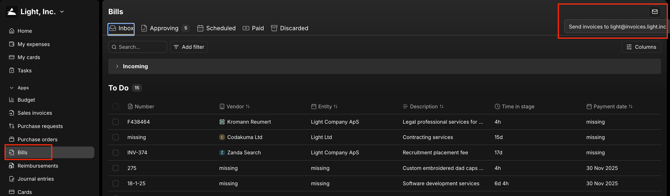
Bills always first land in: Bills → Inbox
Supported ingestion methods:
-
Email forwarding — every tenant has a unique Bills email inbox in format “company@invoice.light.inc”.
-
API (if enabled)
Reviewing & Coding a Bill
Open a Bill in Inbox.
On the top you’ll have
-
Three dots to “Archive” or “convert to credit note”
-
Add to Favourite (in your sidebar)
-
Add comment to Bill (only in webapp)
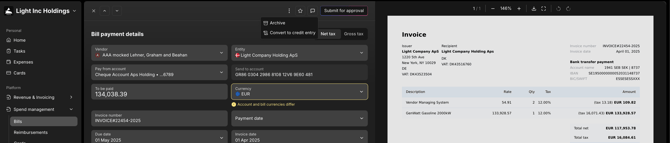
Before submitting for approval, you can review the details on the bill.
You will under Bill payment details see:
- Supplier/vendor
- Amount
- Send to/from account
- Invoice number / payment date / due date / invoice date
- VAT / totals
- Description
- PO Number (if applicable)
Line coding fields:
- GL account
- tax code
- custom properties (dimensions)
Light auto-suggests approvers based on your workflow rules.
You can:
-
adjust extracted values
-
split lines
-
override any coding
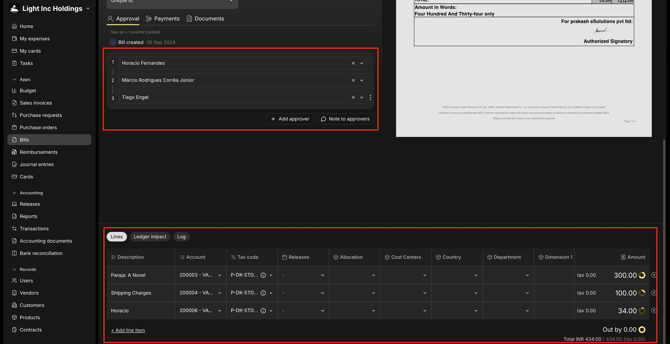
You’ll further be able to see:
- the full Ledger impact by transaction, entity and group currency
- The full log by date & time, actor, action, property and description
When ready → Send for Approval
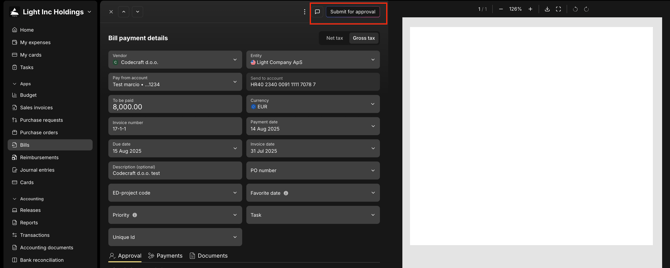
Approvals
Upon sending out for approval, you can:
- Add a note to approvers that will be seen in the approval message.
After submitting, the Bill moves to Approving.
Approvers are notified via:
- In-app tasks
- Slack or Teams (if is connected)
Actions available:
- approve
- reject
- Add a comment (reason for rejection or a comment for the next approver e.g.” look at the discount”)
Approvals runs in the sequenced chain and all details are locked once sent out for approval.
Once the final approver approves → the Bill becomes Scheduled
If one approver rejects, it gets sent back to finance and the full chain of approvers needs new approval.
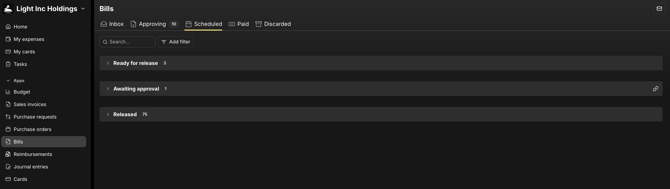
Scheduled (payment run stage)
Scheduled = fully approved + queued for payment.
In Ready for Release, you can tick the bills and submit them for payment run approval.
Approval will happen by the members in the user group that’s linked to Payment Approval guardrails.
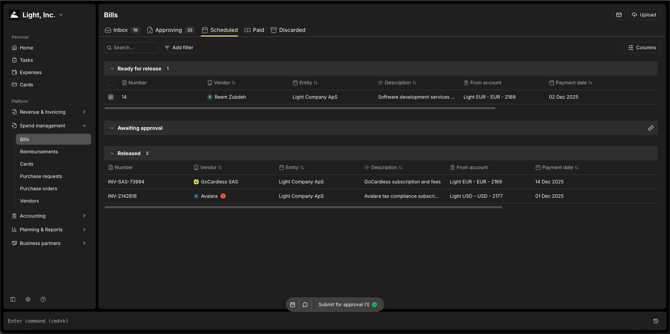
Once approved by payment approvers, actions depend on your bank setup:
-
if bank payment integration is enabled with Light’s implementation team → automatic payment runs can trigger payment files to be sent on the scheduled payment date (pain001 files with pain002 acknowledgement files and camt53 files marking them as paid based on an end-to-end reference ID).
-
if not → finance can still manually mark the Bill as paid by clicking on the bill that’s Ready to release, click the three dots in the top right and Mark as Paid
Paid
Once the Bill is paid (automatic OR manual):
Status = Paid
Paid Bills appear in:
- Bills → Paid
- Accounting → Transactions (ledger)
Duplicate Protection
Light automatically detects likely duplicates using a 3-factor match:
- vendor
- invoice number
- amount
