
Light integrates with Airwallex to enable outgoing payments directly from your Airwallex virtual bank accounts.
Overview
The Airwallex integration allows you to:
-
Connect your Airwallex account to Light
-
Make outgoing payments (domestic and international/SWIFT) from your Airwallex virtual bank accounts
-
Track payment status automatically within Light
Prerequisites
Before connecting Airwallex to Light, you'll need:
-
An active Airwallex account
-
Your Client ID and API Key from the Airwallex dashboard (see Airwallex documentation for retrieving them)
-
At least one Airwallex bank account created in Light. To create an Airwallex bank account, go to Settings > Bank accounts > Add account and insert only the following fields:
-
Entity: the entity owning the bank account
-
Bank Country: the country of the bank account
-
Name: this is the name that will be shown to you when you need to choose a bank account
-
Bank provider: this must be
Airwallex -
Currency: the currency must match the currency of the balance of the airwallex account
and then press the
Addbutton.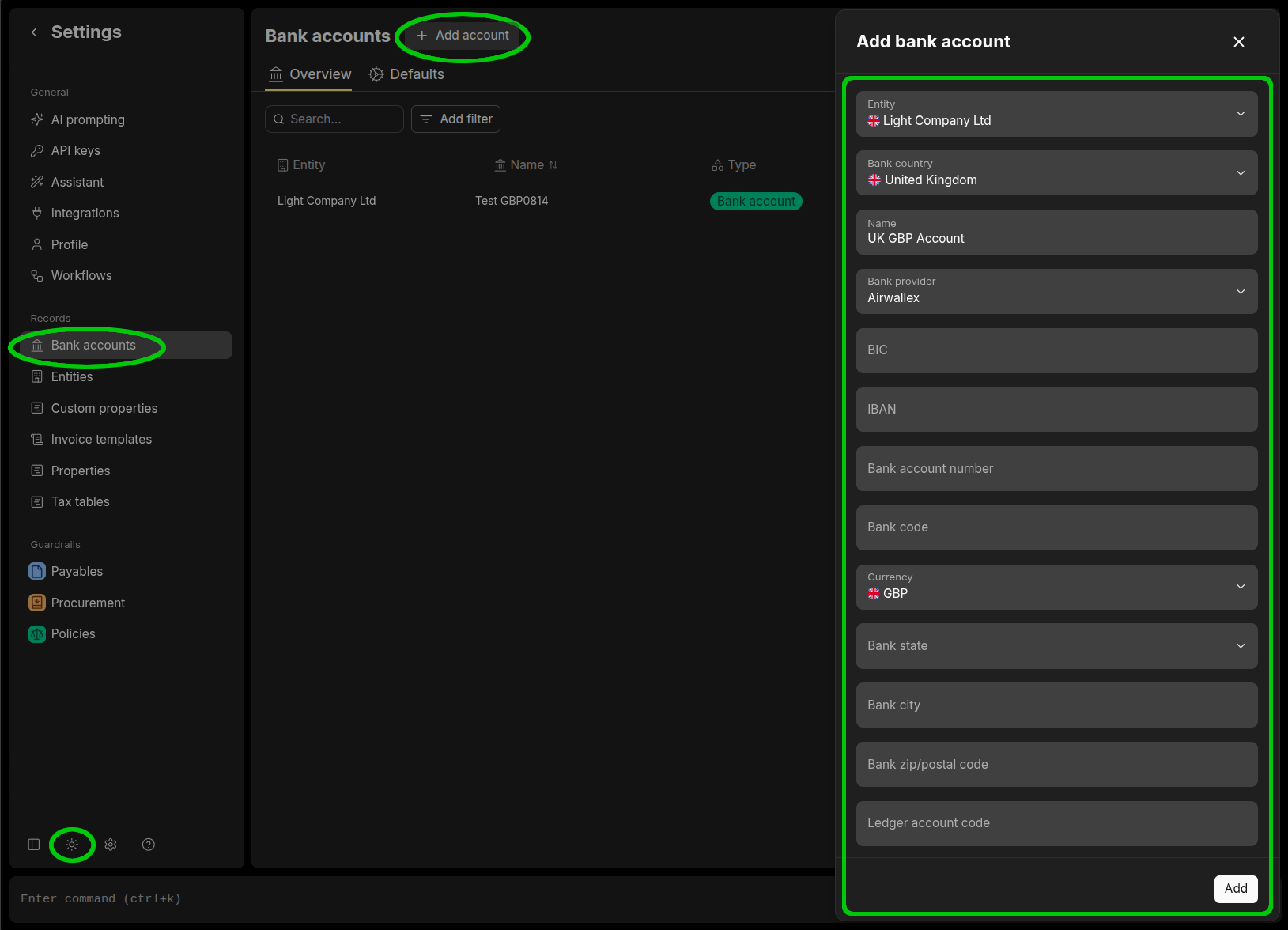
-
Setup Steps
-
Go to Settings > Integrations > Add Integration > Airwallex

-
In the connection dialog

Enter:
-
Client ID – Found in your Airwallex dashboard
-
API Key – Found in your Airwallex dashboard
⚠ ****Important: Make sure to use account level credentials, not organization level credentials when filling the information
-
Under Bank Accounts, select the Light bank accounts you want to link to this Airwallex connection
-
You can add one bank account per currency
-
Use the toggle to set each bank account as active or inactive
-
Click + Add another bank account to link additional accounts
-
-
Click Create to save the connection
Once connected, Light will validate your credentials against Airwallex and your connection will be ready for use.
Managing Your Connection
Viewing Connections
Go to Settings > Integrations > Airwallex to view all your Airwallex connections.
Updating a Connection
If you need to change the API key (for example for rotating the keys) or you want to change (add or remove an airwallex account connection), you can update the connection.
To do that, go to the desired Airwallex connection via Settings > Integrations > Airwallex > [Desired Connection].
To change the API key press the update icon :update-icon:, insert the new API key in the dialog and press the Save Changes button.
To change the mappings, add or remove mappings and then press the Save Changes button when you’re done.
Disabling a Bank Account
If you want to temporarily stop payments from a specific bank account without removing the connection entirely, toggle the bank account to inactive and press the Save Changes button. This will block new payments, including the ones that are scheduled and haven’t reached the payment date, while preserving the connection for historical records. Take into account that if the connection is disabled just after a payment is executed, Light has no way to retrieve the status of that payment (if it was successful or it failed) since the connection has been disabled.
You can later reactivate it just toggling it back to Active.
Deleting a Connection
To remove an Airwallex connection entirely, go to Settings > Integrations > Airwallex > [Desired Connection], press the Delete Connection button and confirm the deletion pressing the Delete button in the dialog. This will remove all bank account mappings associated with that connection.
The same considerations for disabling a bank account apply for the connection deletion: new payments will be blocked and still executing payments status can’t be retrieved.
Payments
In the Bill payment details page you can select the Airwallex connection from the Pay from Account dropdown.
Payment Status
Once a payment is initiated through Airwallex, Light automatically checks for status updates every 15 minutes.
Troubleshooting
"Invalid credentials" error
-
Verify your Client ID and API Key are correct in the Airwallex dashboard
-
Ensure your API key has not expired or been revoked
"Bank account not valid" error
-
The bank account must be set up as a virtual bank account with Airwallex as the provider
-
Contact support if you need help configuring bank accounts
"Country mismatch" error
-
Your company entity country must match one of the countries configured in your Airwallex account
-
Check your entity settings in Light or your Airwallex account configuration
Payments not processing
-
Verify the bank account mapping is set to active (toggle is on)
-
Check that your Airwallex account has sufficient funds
-
Ensure beneficiary details are valid
Need Help?
If you encounter issues with your Airwallex integration, contact Light support.